20 Common Reasons Why Windows Freezes and How to Fix Them - 27/11/2024
Discover 20 common reasons why Windows freezes and learn quick fixes for each issue.
20 Common Reasons for Windows Freezing and How to Fix Them
Have you ever been in the middle of an important task, only to have your Windows system freeze unexpectedly? It’s frustrating, disruptive, and often leaves you scrambling to figure out what went wrong. Thankfully, most of these issues are fixable with some troubleshooting. This guide dives into the most common reasons Windows hangs and how you can resolve them.
1. Insufficient System Resources

Why It Happens:
Low RAM, high CPU usage, or limited storage space can cause Windows to hang, especially if multiple applications are running.
Fix:
- Upgrade hardware: Install additional RAM or expand your storage.
- Free up resources:
- Use Task Manager (
Ctrl+Shift+Esc) to close resource-heavy programs. - Disable unnecessary startup programs under the Startup tab in Task Manager.
- Use Task Manager (
- Clear disk space: Use Disk Cleanup (
cleanmgr) to remove temporary files.
2. Corrupted System Files

Why It Happens:
Over time, essential system files can become damaged or corrupted, leading to instability.
Fix:
- Open Command Prompt as Administrator.
- Run
sfc /scannowto scan and repair corrupted files. - Use
DISM /Online /Cleanup-Image /RestoreHealthfor more advanced repairs.
3. Outdated or Incompatible Drivers
Why It Happens:
Faulty or outdated drivers can cause conflicts between hardware and the operating system.
Fix:
- Update drivers via Device Manager:
- Right-click on the problematic device and select “Update driver.”
- Use Windows Update or trusted third-party tools to ensure drivers are current.
4. Malware or Viruses

Why It Happens:
Malware can hog system resources or interfere with critical processes.
Fix:
- Run a full system scan using antivirus software like Windows Defender or Malwarebytes.
- Quarantine or remove detected threats.
5. Overheating
Why It Happens:
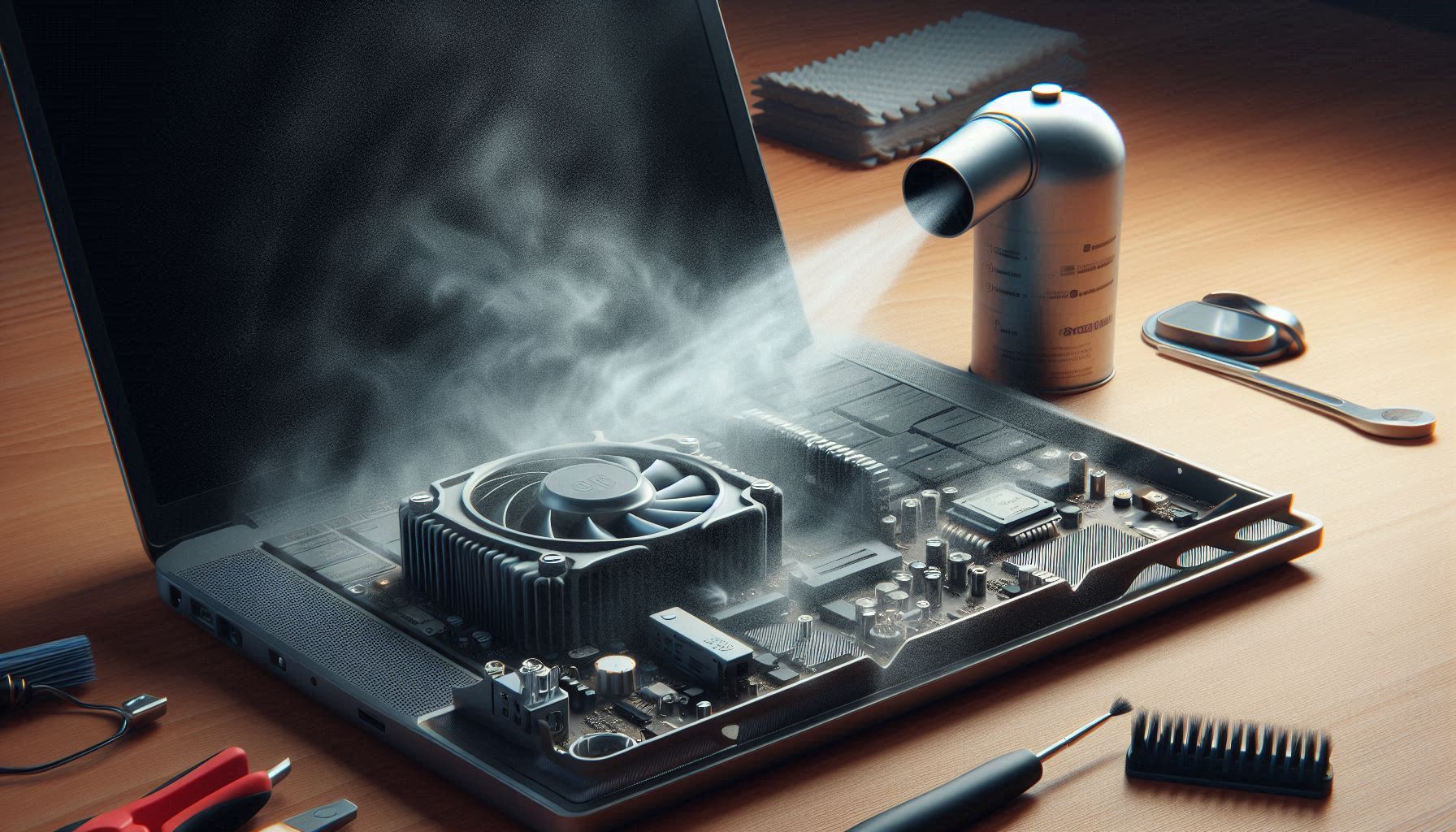
When components like the CPU or GPU overheat, the system can freeze to prevent damage.
Fix:
- Clean dust from vents and fans using compressed air.
- Use a cooling pad (for laptops).
- Monitor temperatures with tools like HWMonitor.
6. Software Conflicts
Why It Happens:
Incompatible or poorly optimized software can disrupt system stability.
Fix:
- Uninstall recently installed apps if the issue started after their installation.
- Boot in Safe Mode to determine if third-party software is causing the problem.
7. Windows Updates
Why It Happens:
Sometimes, bugs in updates or incomplete installations can cause freezing.
Fix:
- Check for updates:
Settings > Update & Security > Windows Update. - Roll back recent updates if the problem began after installing one.
8. Faulty Hardware
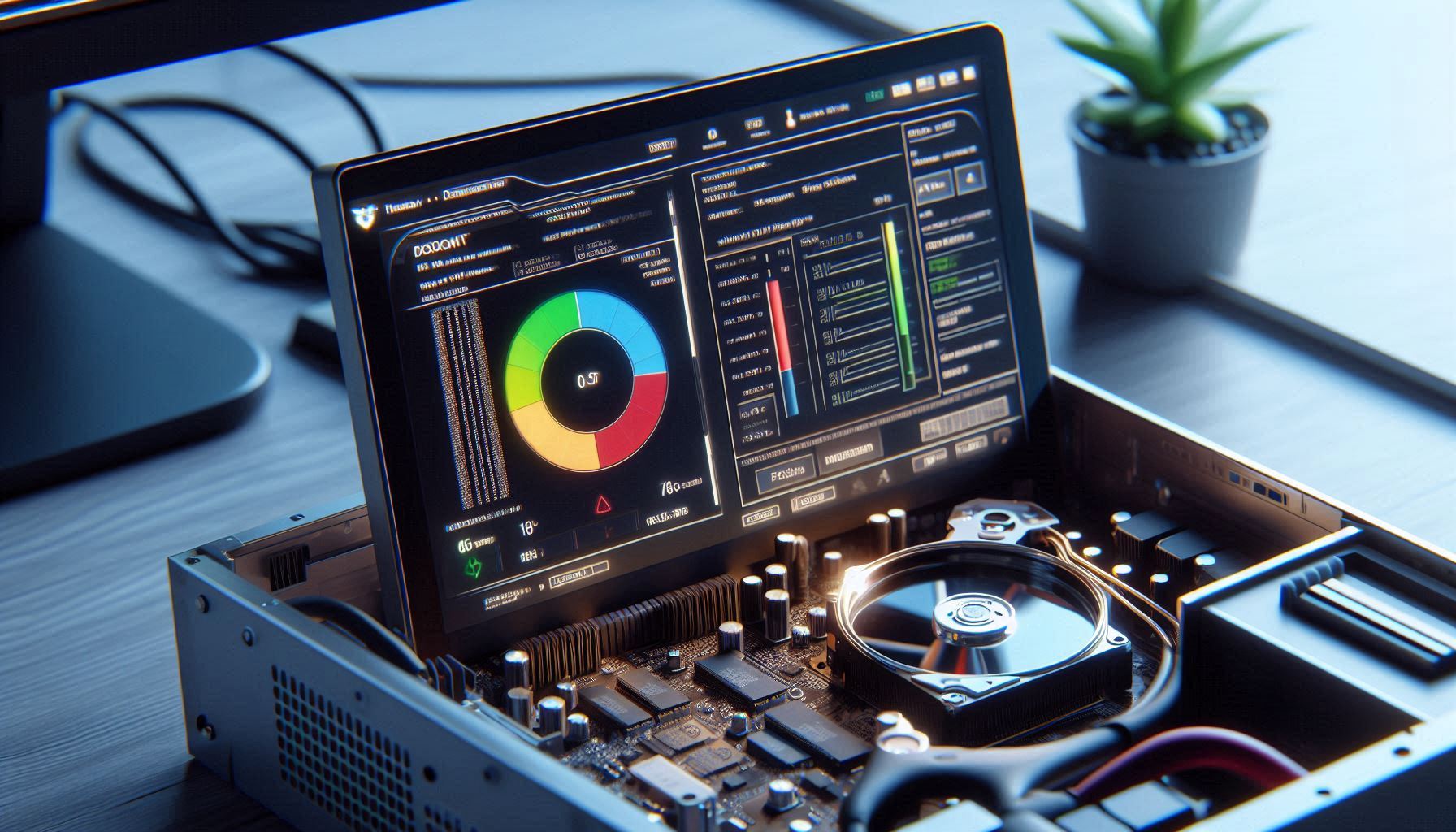
Why It Happens:
Failing components, like hard drives or RAM, can cause your system to freeze.
Fix:
- Test RAM using Windows Memory Diagnostic (
mdsched.exe). - Check your hard drive using
chkdsk /f /ror third-party tools like CrystalDiskInfo.
9. Overloaded Startup Programs

Why It Happens:
Too many programs launching at startup can slow down or freeze your system.
Fix:
- Disable non-essential programs from starting automatically:
Task Manager > Startuptab.
10. Corrupted User Profile

Why It Happens:
A damaged user profile can cause random system freezes.
Fix:
- Create a new user profile:
Settings > Accounts > Family & Other Users > Add another user. - Transfer your data to the new profile.
11. BIOS/UEFI Issues
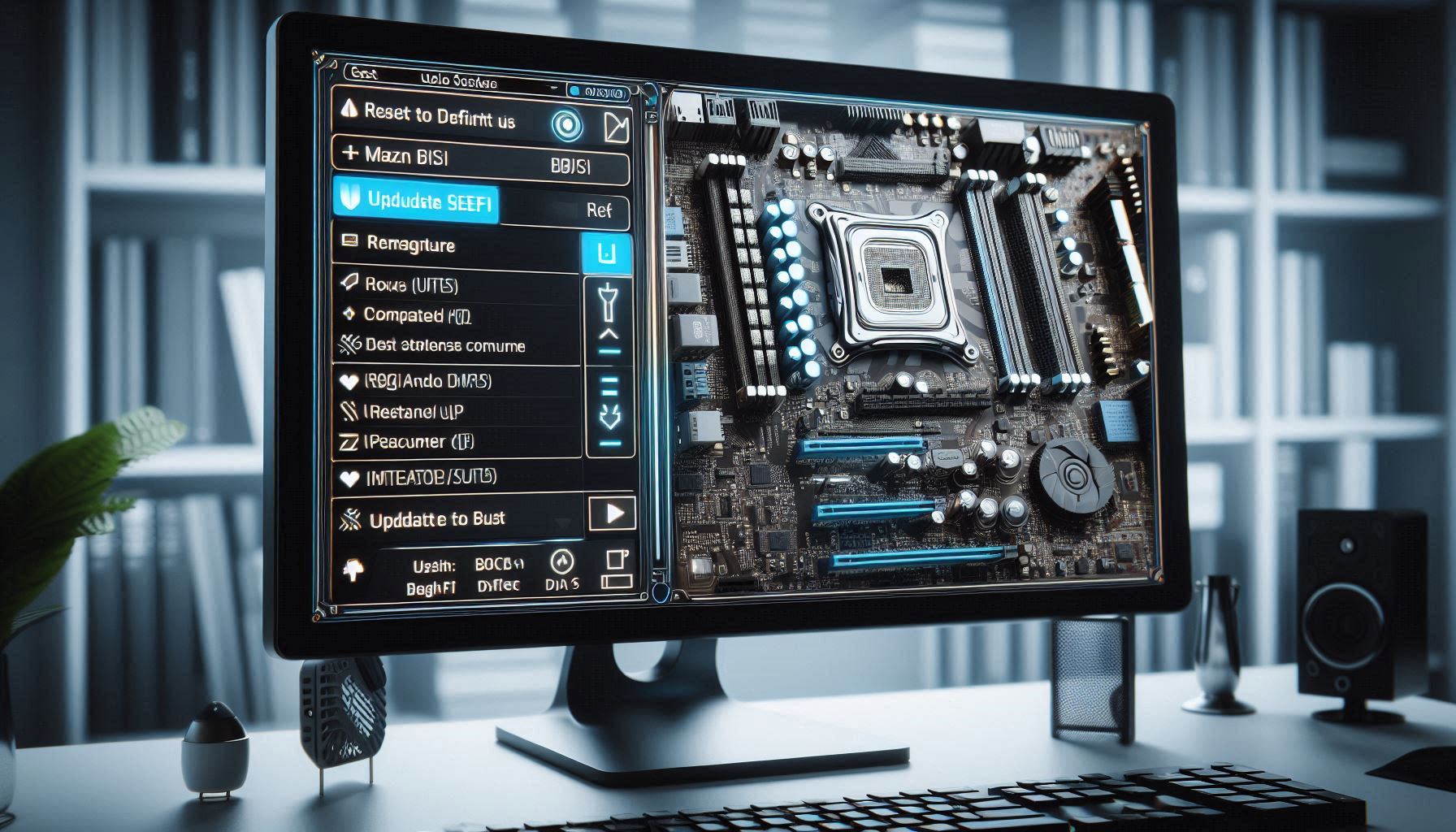
Why It Happens:
Outdated BIOS or improper settings can affect system performance.
Fix:
- Update BIOS/UEFI firmware by following your motherboard manufacturer’s instructions.
- Reset BIOS to default settings.
12. External Devices

Why It Happens:
A malfunctioning USB device or external peripheral can cause conflicts.
Fix:
- Disconnect all external devices and reconnect them one at a time to identify the culprit.
13. Registry Errors
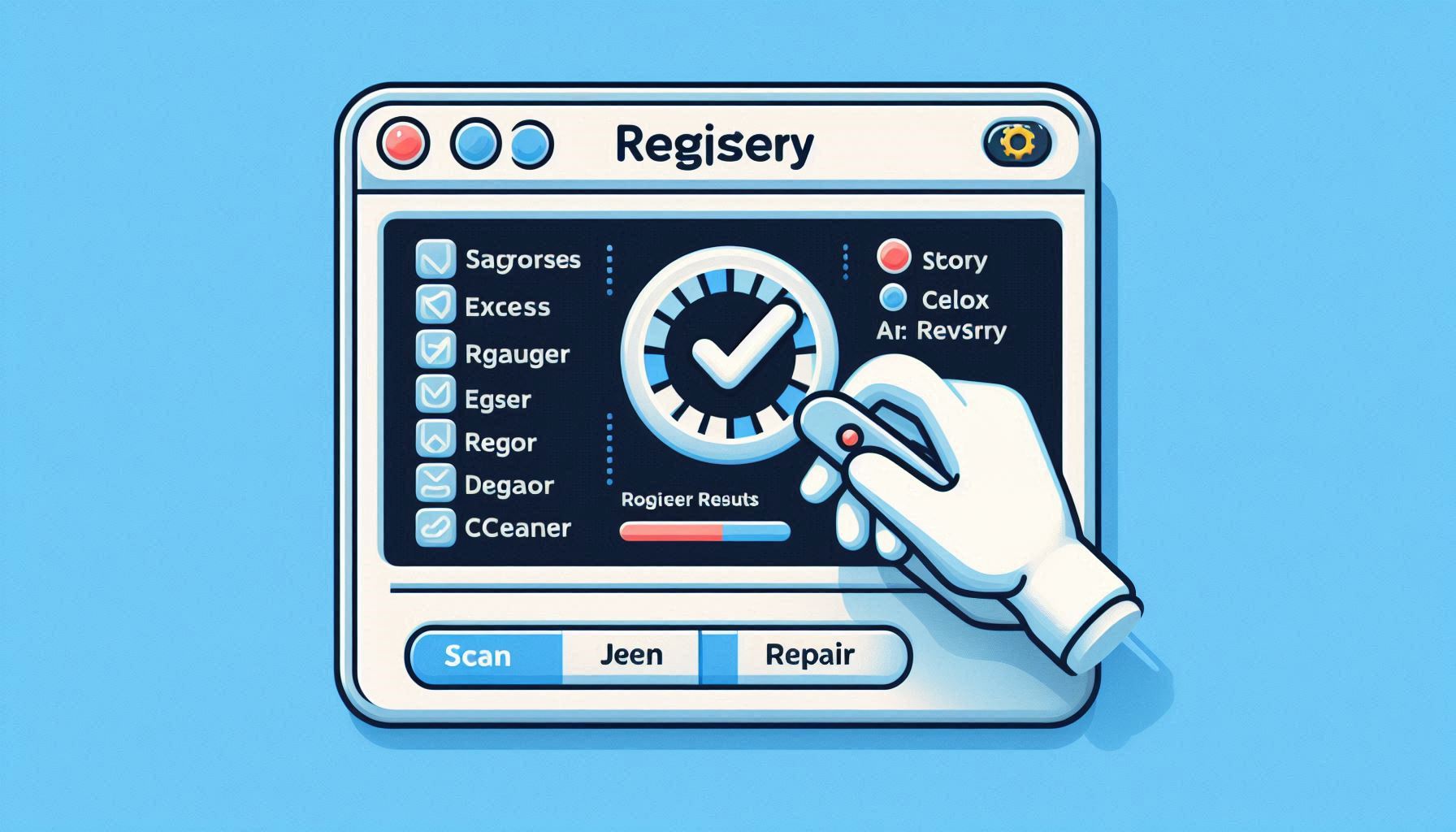
Why It Happens:
Invalid or corrupted registry entries can disrupt system operations.
Fix:
- Back up the registry.
- Use tools like CCleaner to safely clean it.
14. Power Supply Issues
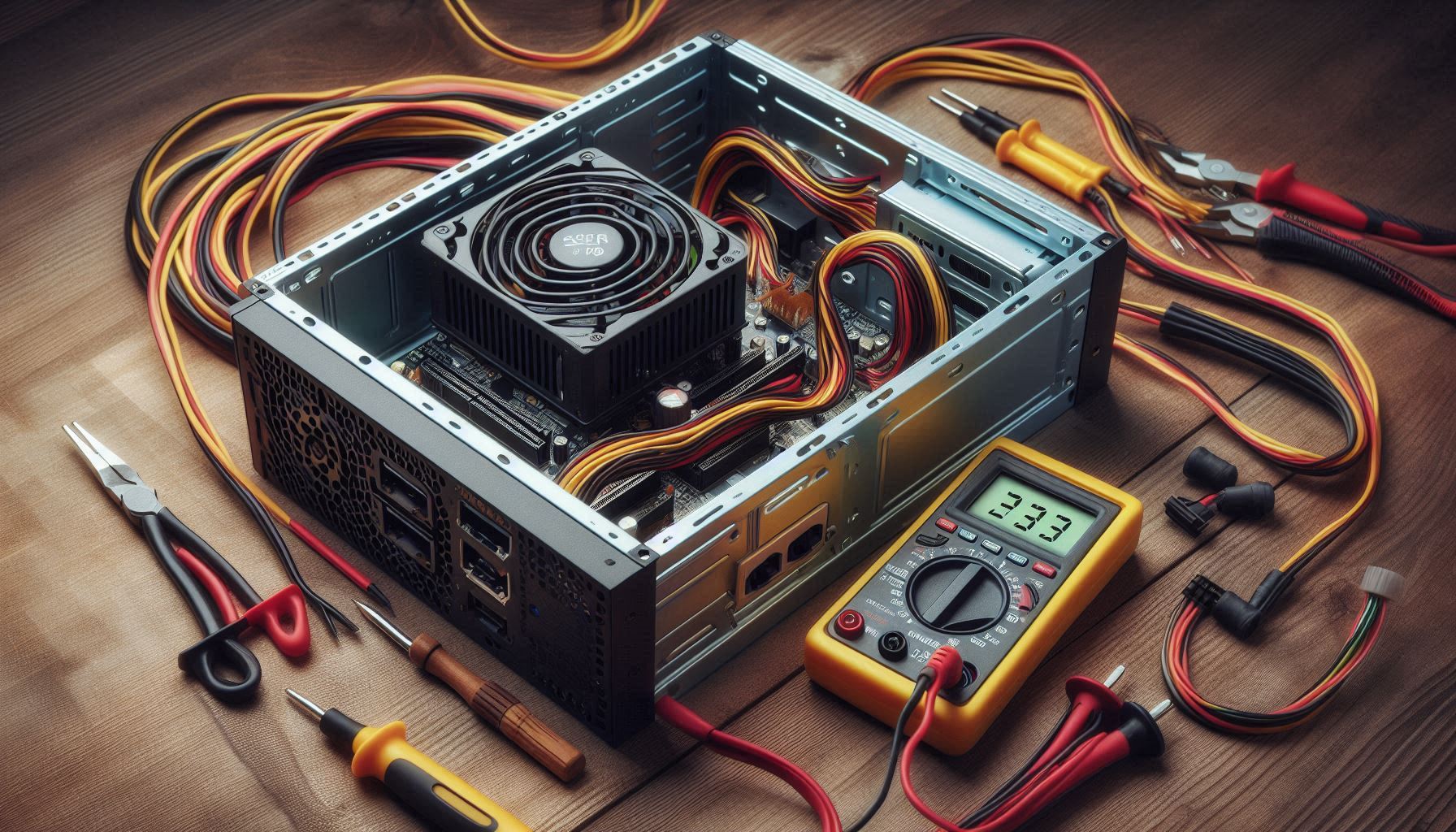
Why It Happens:
An unstable or insufficient power supply can lead to freezes.
Fix:
- Test your PSU (Power Supply Unit) for desktops.
- Use a reliable surge protector or UPS to ensure stable power.
15. Outdated Windows Version
Why It Happens:
Running an older version of Windows can leave you vulnerable to bugs and compatibility issues.
Fix:
- Upgrade to the latest version of Windows.
- Regularly check for updates to keep your system secure.
16. Third-Party Antivirus or Firewalls

Why It Happens:
Sometimes, overzealous third-party security software can conflict with Windows.
Fix:
- Temporarily disable the antivirus or firewall to test if it’s causing the issue.
- Switch to a different security solution if necessary.
17. Disk Fragmentation
Why It Happens:
Fragmented files on traditional hard drives can slow down performance.
Fix:
- Use Defragment and Optimize Drives (
dfrgui) for HDDs. (Note: This isn’t needed for SSDs.)
18. Background Windows Services
Why It Happens:
Certain services may consume excessive resources or cause conflicts.
Fix:
- Open Task Manager and disable unnecessary background services.
- Use
services.mscto stop services manually.
19. High Page File Usage
Why It Happens:
Improper virtual memory (page file) settings can slow the system.
Fix:
- Adjust the page file size:
Control Panel > System > Advanced system settings > Performance Settings > Advanced.
20. Display Issues
Why It Happens:
Problems with your graphics card or its drivers can lead to freezing.
Fix:
- Update GPU drivers from the manufacturer’s website.
- Test with a different monitor or resolution.
Final Thoughts
If you’ve tried all these solutions and your system still freezes, consider a system restore or clean installation of Windows. Always back up your important files before attempting major fixes.
By identifying and addressing these common causes, you can keep your Windows system running smoothly and minimize frustrating interruptions. Which of these fixes worked for you? Let us know in the comments!