Common RAM Problems and How to Troubleshoot Them - 30/11/2024
Discover common RAM problems and simple troubleshooting steps to fix them.
Common RAM Problems and Troubleshooting Guide
Introduction
Random Access Memory (RAM) is a crucial component of any computer system, significantly impacting its performance and stability. However, RAM problems can cause frustrating issues like system crashes, slowdowns, and even failure to boot. This blog will explore common RAM issues and guide you through effective troubleshooting steps.
Common RAM Problems
1. System Fails to Boot
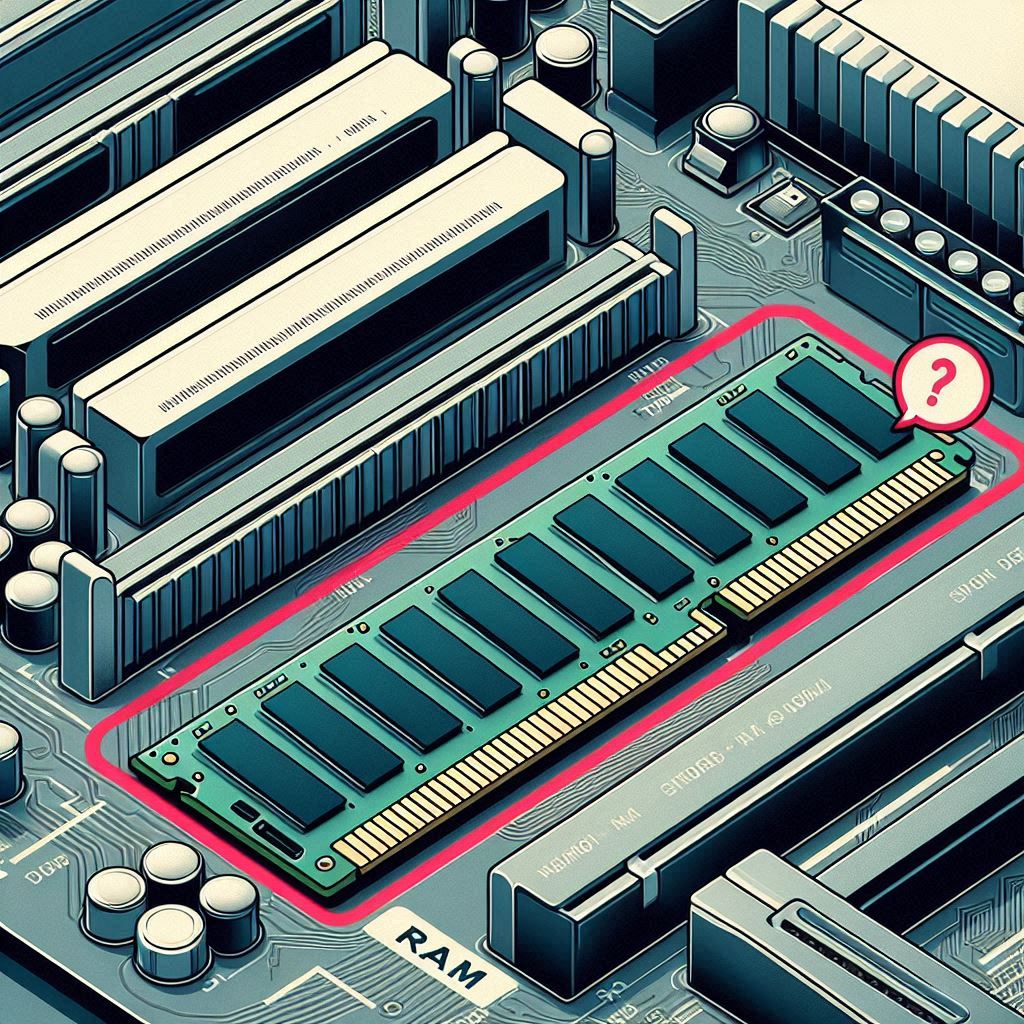
When your system fails to boot, you might hear beeping sounds or face a black screen. This is often due to faulty or improperly seated RAM.
2. Random Crashes or Blue Screen of Death (BSOD)
Frequent crashes or BSODs are indicators of corrupted RAM or overheating issues. These crashes often come with memory-related error codes.
3. Performance Issues
Is your computer freezing or slowing down? Insufficient or damaged RAM can lead to performance bottlenecks, especially during multitasking or running heavy applications.

4. Memory Errors During Boot
Receiving error messages like “Memory test failed” or “RAM not detected” during startup? This is usually caused by incorrect BIOS/UEFI settings or incompatible RAM modules.

5. File Corruption
If files get corrupted after saving or error messages appear when accessing them, faulty RAM might be at fault. Improper data storage can cause long-term issues.

6. System Overheating
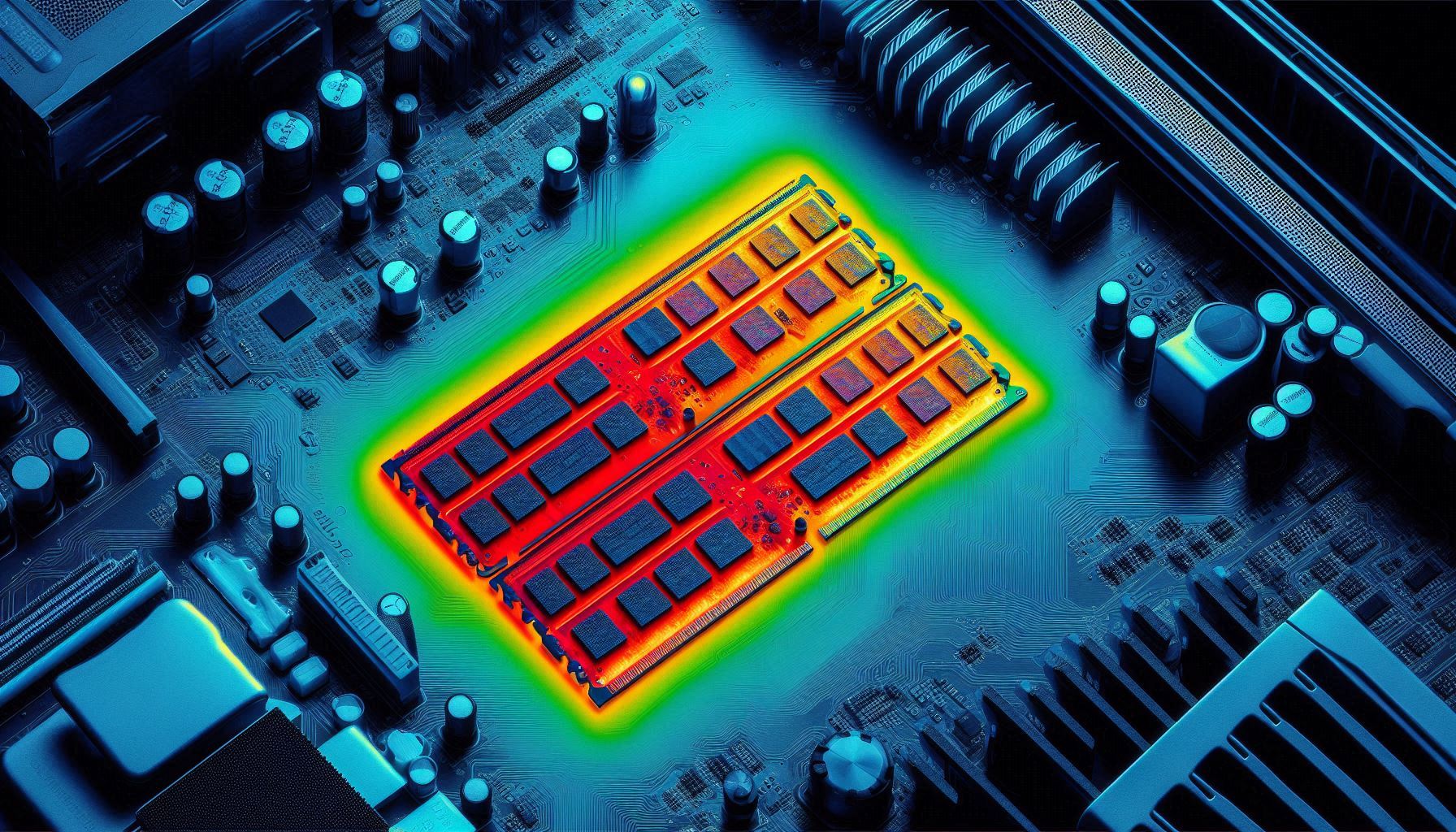
Excess heat can impact RAM performance, causing errors and shutdowns. Poor ventilation or defective RAM sticks are common culprits.
Troubleshooting RAM Issues
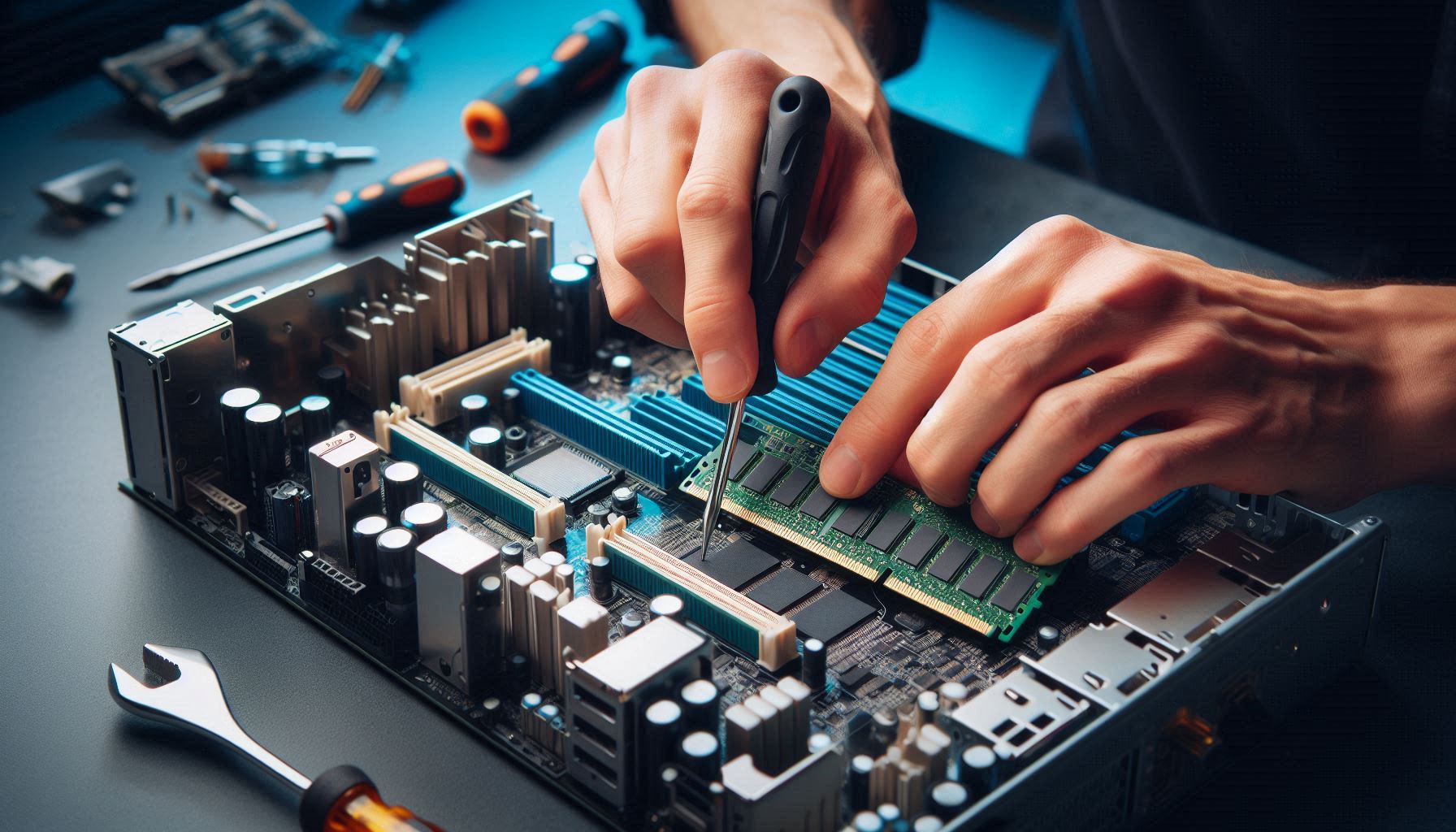
1. Reseat the RAM Modules
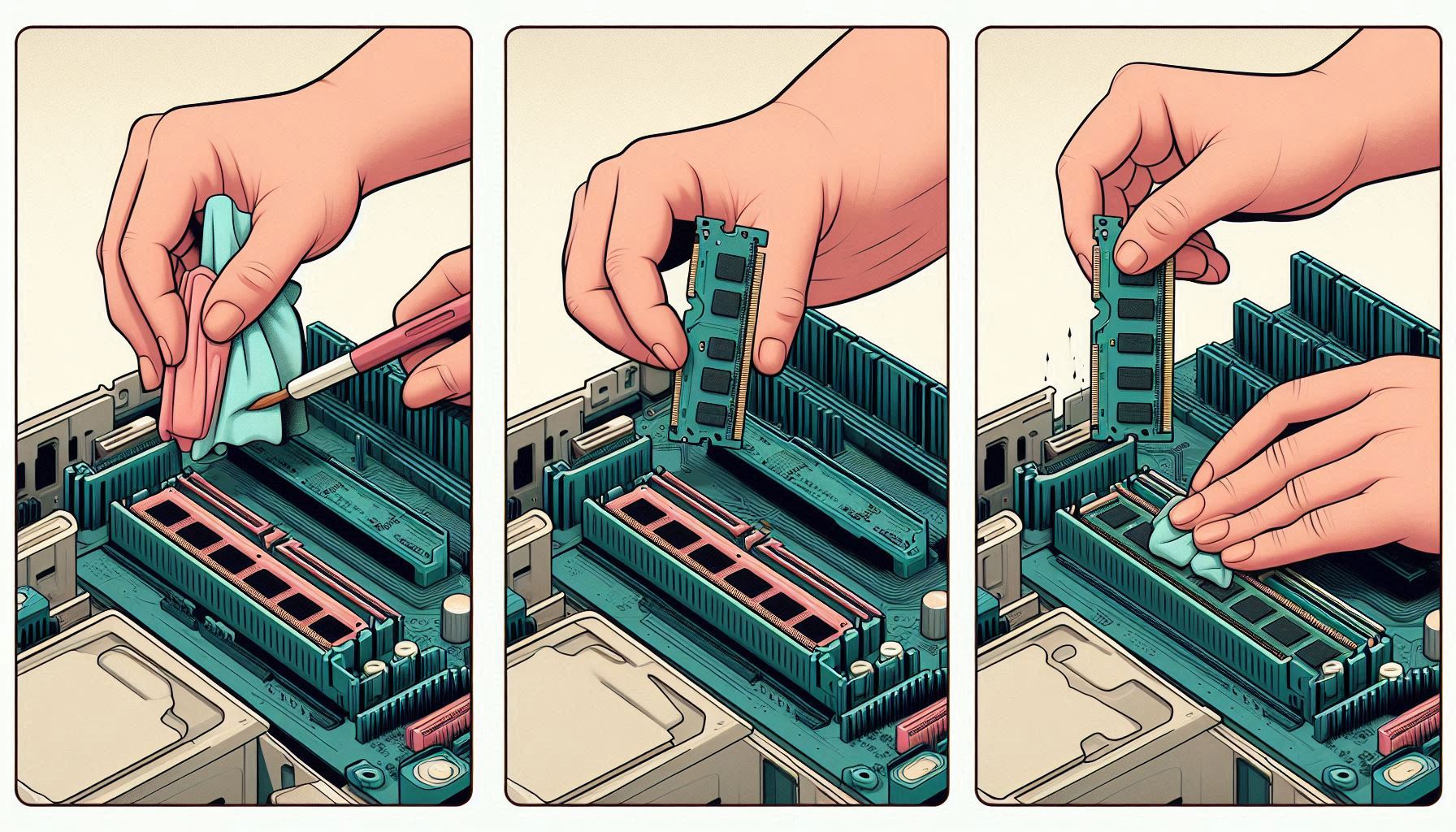
- Power off your system and unplug it.
- Carefully remove the RAM sticks, clean the contacts with a soft cloth, and reseat them securely in the slots.
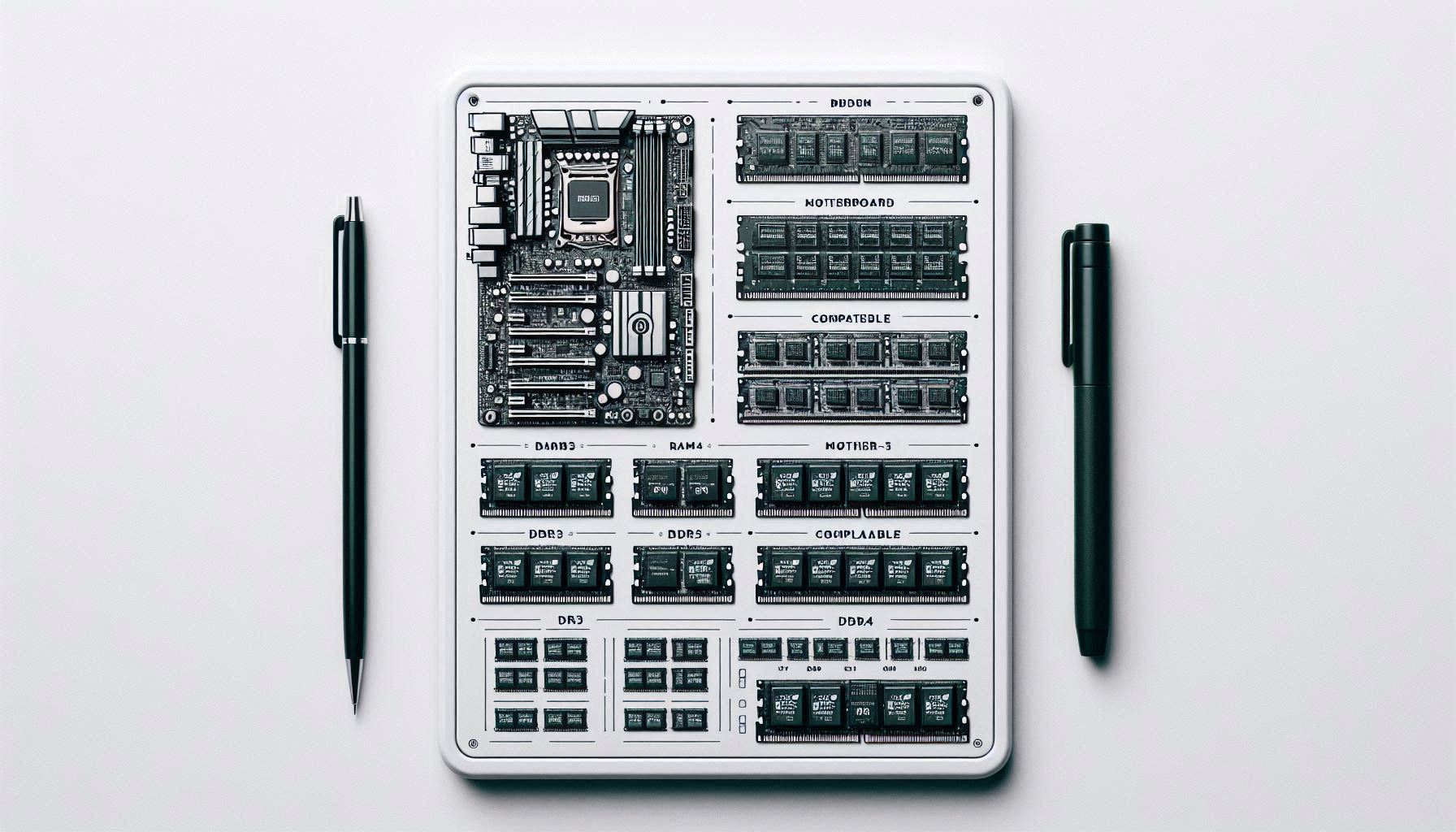
2. Check for Compatibility
Ensure the RAM modules are compatible with your motherboard in terms of model, speed, and capacity. Refer to your motherboard manual or online specifications.
3. Test Each Module Individually
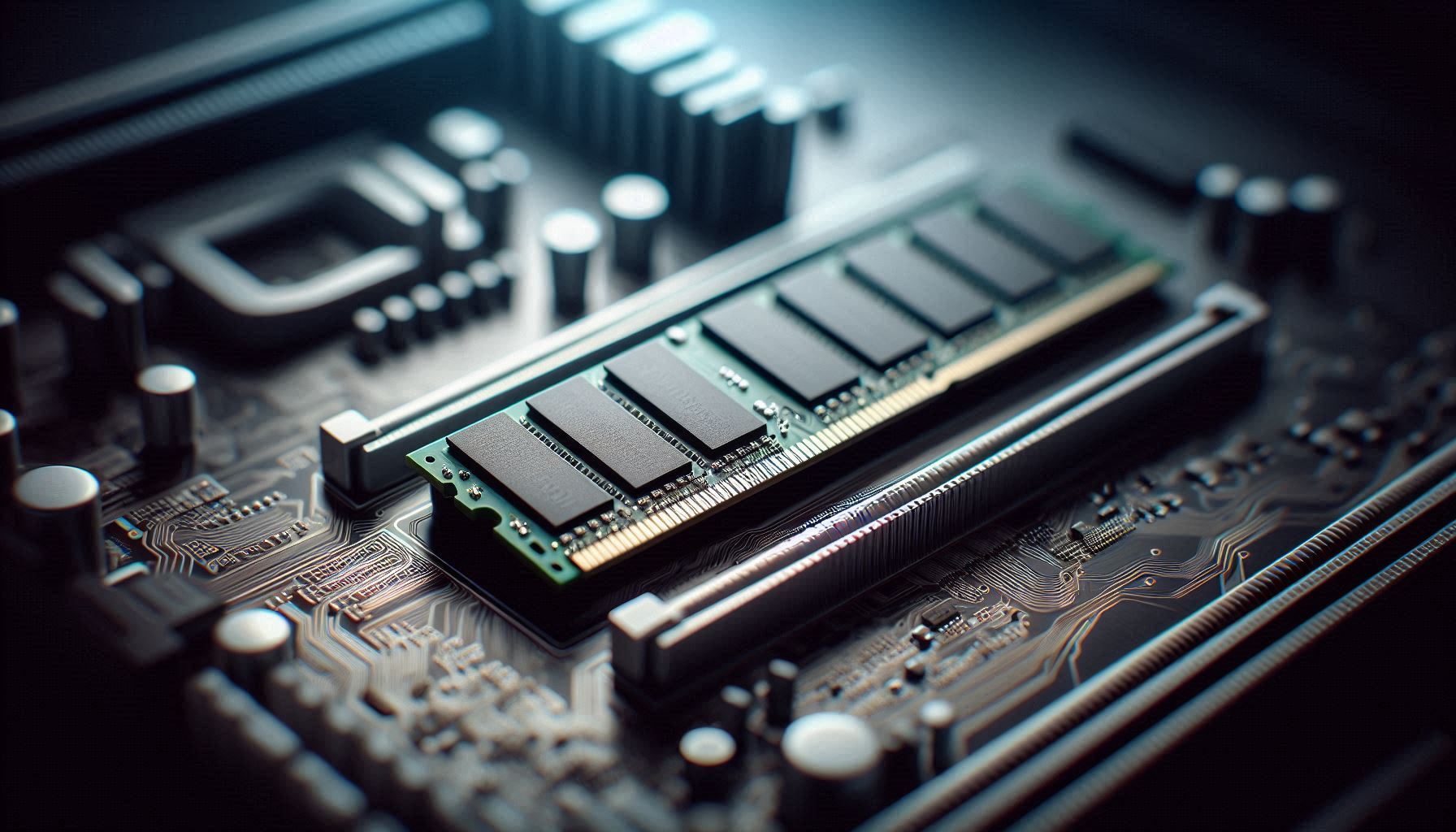
- Insert one RAM stick at a time and boot the system.
- This helps identify faulty RAM modules.
4. Run Memory Diagnostic Tools
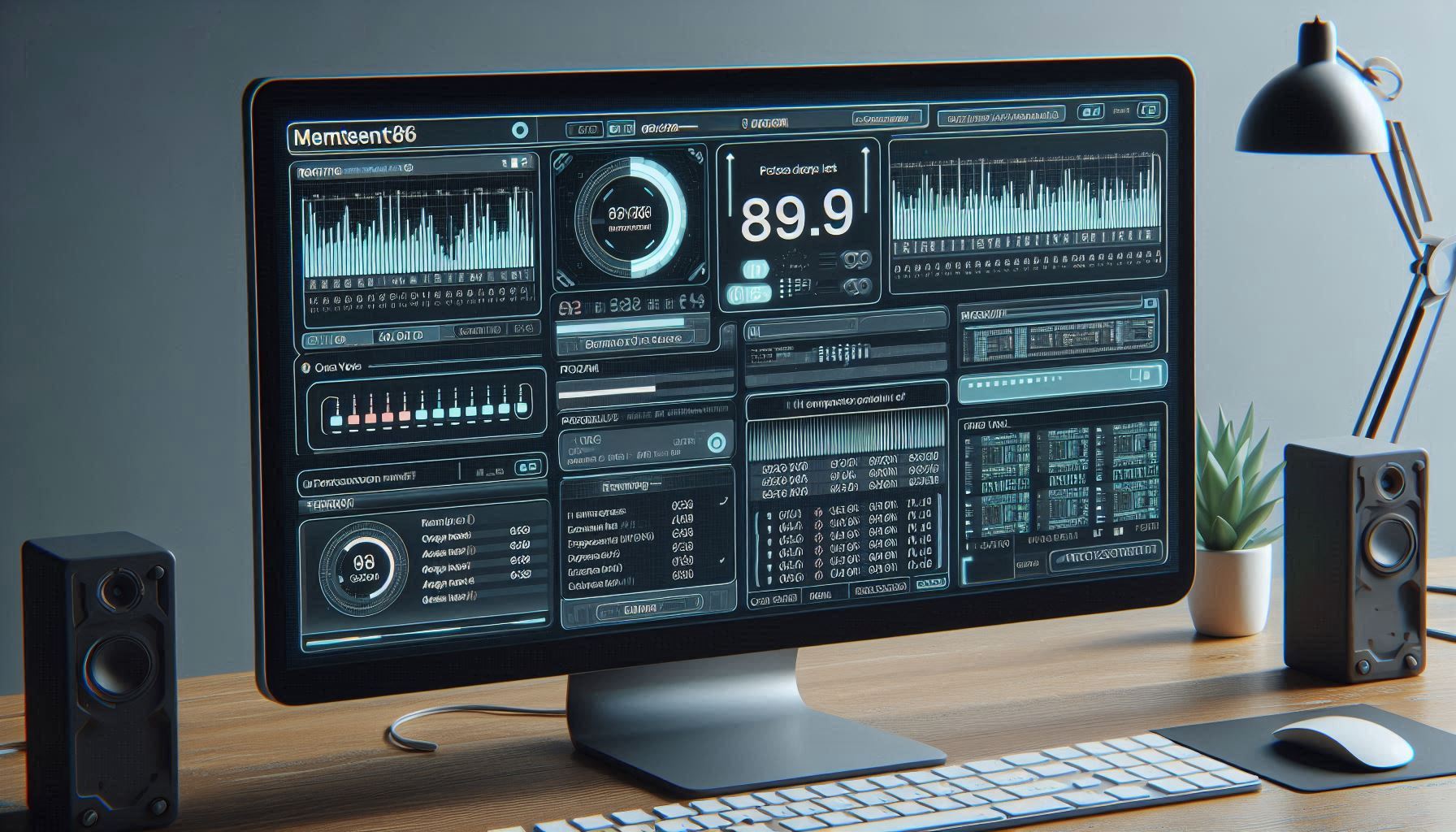
Use diagnostic software to test RAM for errors:
- Windows Memory Diagnostic: Available on all Windows PCs.
- MemTest86: A bootable tool for advanced testing.
5. Check BIOS/UEFI Settings
- Reset BIOS/UEFI to default settings or update to the latest firmware.
- Ensure RAM speed and timings match the specifications.

6. Inspect for Physical Damage
Check your RAM sticks for physical damage, like burns, cracks, or bent pins. Damaged modules should be replaced immediately.

7. Replace the RAM
If a module is confirmed faulty, replacing it with a new one is the best solution. Choose a reputable brand for reliable performance.
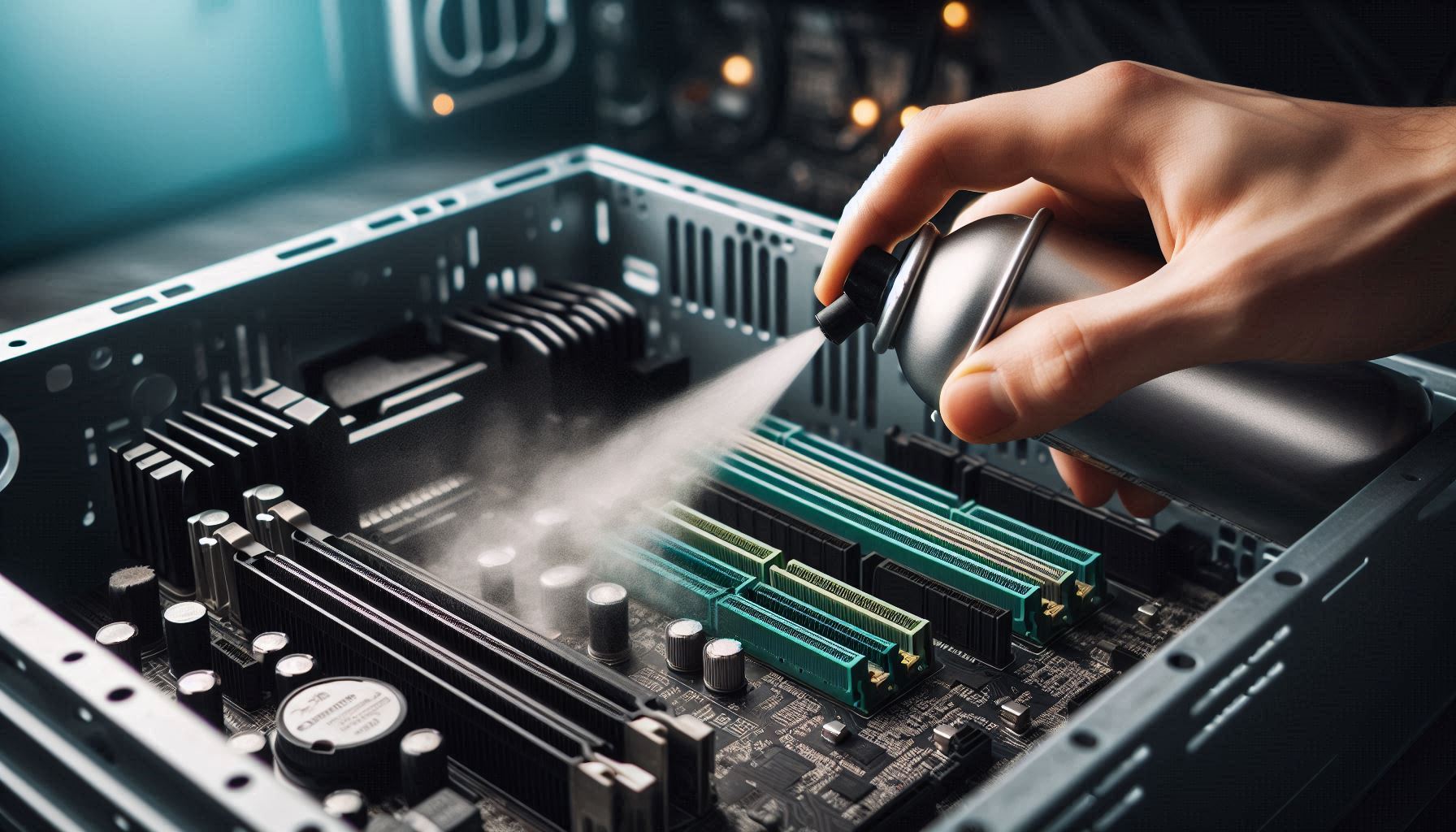
8. Clean Dust and Improve Ventilation
Dust accumulation can cause overheating and RAM malfunctions. Regularly clean your computer’s internals and ensure adequate airflow.
9. Test in a Different System
To confirm the issue, test the RAM in another compatible computer. This will help isolate whether the problem lies with the RAM or another component.
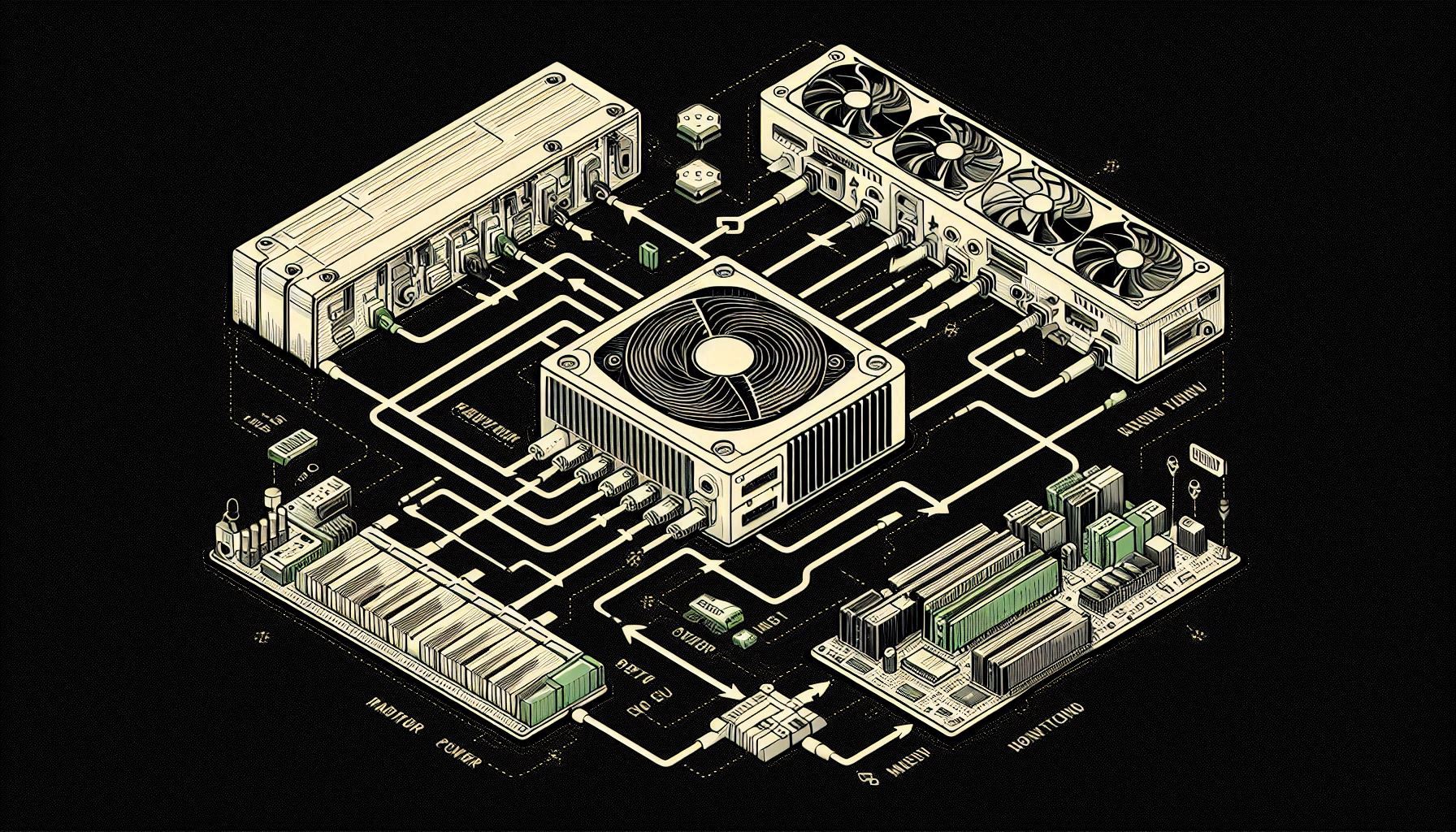
10. Check Power Supply
An unstable or insufficient power supply can cause RAM issues. Ensure your PSU provides adequate and stable power for all components.
When to Seek Professional Help
If these steps don’t resolve the issue, it’s time to consult a professional. Persistent problems might indicate issues with the motherboard or CPU.
Conclusion
RAM problems can be a major hindrance to productivity and gaming, but most issues are fixable with the right approach. Whether it’s a simple reseating or advanced diagnostics, this guide provides actionable solutions to keep your system running smoothly.

Have you experienced RAM issues? Share your story in the comments below!