Active Directory - 22/11/2024
A guide to Active Directory installation, benefits, and uses.
A Comprehensive Guide to Active Directory: Installation, Advantages, and Use
Active Directory (AD) is a widely used directory service developed by Microsoft that plays a crucial role in managing and organizing IT infrastructure. Whether you’re setting up a small business network or managing a large enterprise, Active Directory provides tools to streamline administrative tasks, enhance security, and centralize resource management. In this guide, we’ll explore what Active Directory is, how to install it, its advantages, and its practical applications.
What is Active Directory?
Active Directory is a directory service that facilitates user and resource management across a network. It stores information about users, computers, printers, and other resources, enabling administrators to control access and permissions within an organization.
It operates using a hierarchical structure, consisting of:
- Domains: The fundamental unit of organization in AD.
- Trees: Groups of domains sharing a contiguous namespace.
- Forests: Collections of trees that trust each other.
- Organizational Units (OUs): Sub-divisions within domains used to organize users and resources.

Installation of Active Directory
System Requirements:
- Windows Server (e.g., Windows Server 2019 or 2022).
- Sufficient hardware: At least 1.4 GHz processor, 2 GB of RAM, and 32 GB of disk space.
- Static IP address configured on the server.
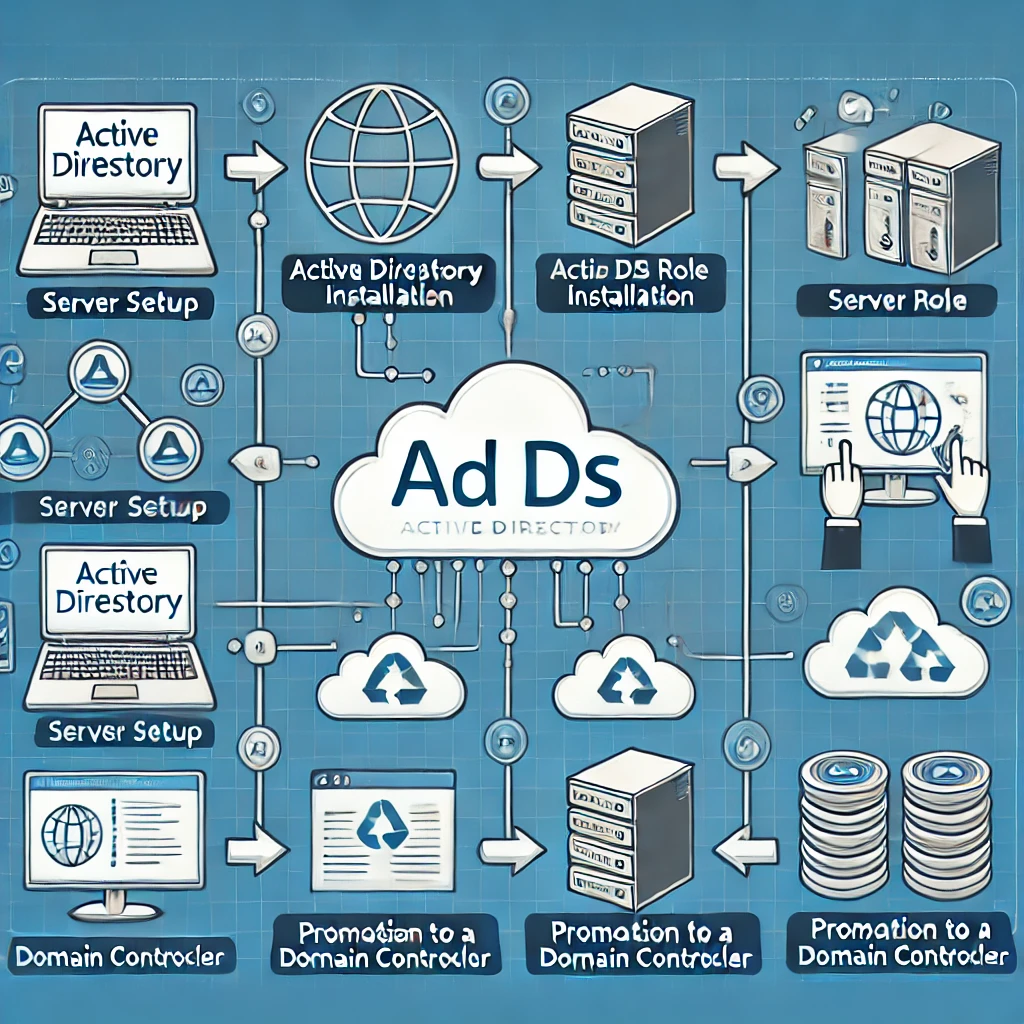
Steps to Install Active Directory:
-
Install Windows Server:
- Set up a fresh installation of Windows Server.
- Configure your server with a static IP address.
-
Install the AD DS Role:
- Open Server Manager.
- Navigate to Manage > Add Roles and Features.
- Select the Active Directory Domain Services (AD DS) role and complete the wizard.
-
Promote the Server to a Domain Controller:
- After installing AD DS, select Promote this server to a domain controller.
- Follow the wizard to:
- Add a new forest (if this is the first domain controller).
- Specify the domain name (e.g.,
example.com). - Configure DNS and set up an administrator password.
-
Complete the Installation:
- Restart the server.
- Verify the AD DS installation using Active Directory Users and Computers (ADUC).
Advantages of Active Directory
-
Centralized Management:
- Admins can manage users, computers, and resources from a single interface.
-
Enhanced Security:
- Group Policies enforce security settings across all devices in the network.
- Built-in authentication protocols like Kerberos increase security.
-
Scalability:
- AD supports networks ranging from small businesses to global enterprises.
-
Seamless Integration:
- Works seamlessly with other Microsoft products and third-party services.
-
Efficient Resource Sharing:
- Users can easily access shared printers, files, and applications.
Practical Uses of Active Directory
-
User Management:
- Create, manage, and delete user accounts.
- Assign permissions to users based on roles.
-
Group Policy Management:
- Enforce password policies, software installations, and desktop configurations.
-
Access Control:
- Control who can access specific resources like files, applications, or devices.
-
Device Management:
- Keep track of all computers, printers, and devices within the network.
-
Single Sign-On (SSO):
- Users can log in once and access multiple services without re-authenticating.
Conclusion
Active Directory is a cornerstone for IT administrators, providing centralized control, security, and scalability. Its robust features make it indispensable for organizations of all sizes. By mastering AD’s installation, advantages, and applications, you can optimize your network’s performance and security.

Are you ready to set up Active Directory for your organization? Whether you’re a beginner or an experienced IT professional, AD is a powerful tool to streamline network administration and enhance security.